

Character input
Code highlighter
Built-in Python keywords and PSJ API are highlighted in different color for better visualization. The highlighted data is stored in the database folder.
In addition, when user double-clicks a word, the same word is highlighted (yellow).

Auto completion
This IDE supports auto-completion.
For example, if user types Geometry.Me, a list box will appear and show words that start with Me.

The auto-completion data is stored in the database folder and supporting the following:
- All words in the IDE
- Python keywords
- PSJ-Utility
- PSJ-Command
Tooltip
This IDE supports showing tooltips.
For example, if user enters JPT.ClearLog(, a tooltip showing the JPT.ClearLog document is displayed.

The docstring from user’s defined function is also displayed.

The tooltip data is stored in the database folder.
Group block of script (Collapse/Expand)
This IDE supports code block grouping (a portion of code can be shown or hidden)

File Menu

| NAME | DESCRIPTION | SHORTCUT KEY |
|---|---|---|
| New | Make a new document | ^ Ctrl + N |
| Open | Open a saved Python script file. (uer can also drag & drop Python file to the IDE window) | ^ Ctrl + O |
| Save | Save the Python script file | ^ Ctrl + S |
| Save As | Save the Python script file with another name | ^ Ctrl + E |
| Exit | Close the IDE | ^ Ctrl + Q |
Edit Menu

| NAME | DESCRIPTION | SHORTCUT KEY |
|---|---|---|
| Undo | Cancel the executed operation and return to the previous state | ^ Ctrl + Z |
| Redo | Retry the canceled operation | ^ Ctrl + Y |
| Cut | Cut the selected text | ^ Ctrl + X |
| Copy | Copy the selected text | ^ Ctrl + C |
| Paste | Paste the Cut/Copy text | ^ Ctrl + V |
| Import Macro Log | Import the macro of the executed command in the form of JPT.Exec(macro command) | ^ Ctrl + M |
| Import Python Macro Log | Import the executed PSJ-Command | ^ Ctrl + J |
| Import Script From Last Run | Import the Python script from last run in the IDE | ^ Ctrl + L |
| Find | Find a specific character in the script. (if user selects some words before executing this function, initial search value will be added with selected words) | ^ Ctrl + F |
| Comment | Insert the comment tag # before the selected script | ^ Ctrl + K |
| Toggle Comment | Switch between comment and comment cancellation | ^ Ctrl + T |
| Go To Line | Go to a specific line in the script | ^ Ctrl + G |
| Find And Replace | Find and replace the specific characters in the script. (if user selects some words before executing this function, initial search value will be added with selected words) | ^ Ctrl + H |
| Convert to Upper Case | Convert selected text to upper case | ^ Ctrl + ⇧ Shift + U |
| Convert to Lower Case | Convert selected text to lower case | ^ Ctrl + U |
| Insert Tab | Insert a tab to current cursor. In case multiline is selected, tabs will be inserted at the beginning of each line | ^ Ctrl + I |
| Duplicate Selection/Line | Duplicate selected text. In case selected is empty, current line is duplicated | ^ Ctrl + D |
View Menu
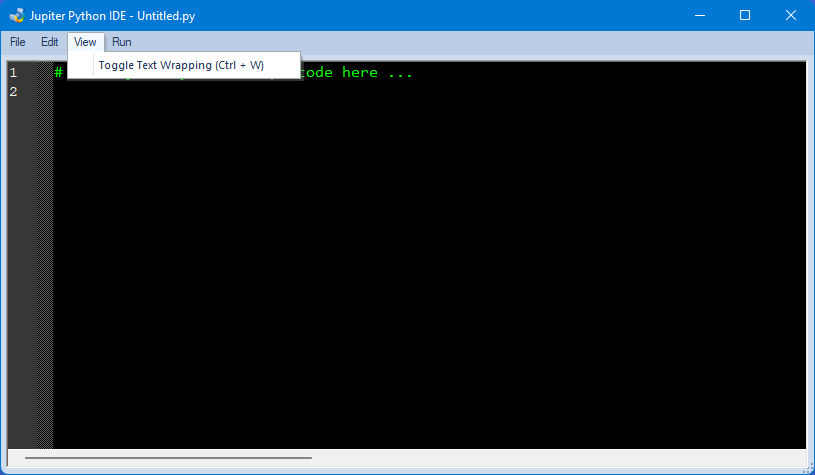
| NAME | DESCRIPTION | SHORTCUT KEY |
|---|---|---|
| Toggle Text Wrapping | Wrap the whole code within the IDE window or let the code stays in one line only | ^ Ctrl + W |
Run Menu
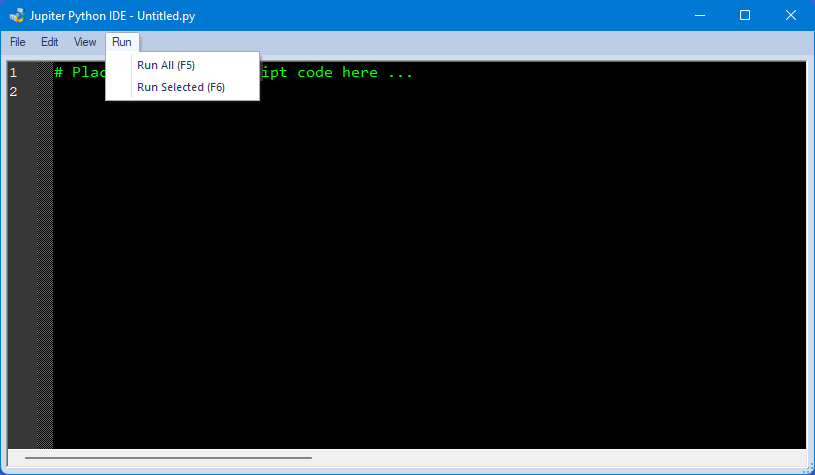
| NAME | DESCRIPTION | SHORTCUT KEY |
|---|---|---|
| Run All | Execute all the script | F5 |
| Run Selected | Execute only the current selected script | F6 |
Database

The IDE database is stored in the Jupiter installation folder/IDEData/. This database can be edited.
Content of each file
Keywords.dat: Keywords for code highlighter in the IDEPSJCommandCalltips.dat: PSJ-Command auto-completion and tooltip dataPSJGuiTooltip.dat: PSJ-GUI auto-completion and tooltip dataPSJUtilityCalltips.dat: PSJ-Utility auto-completion and tooltip dataPSJPythonHelperCalltips.dat: PSJ Python Helper calltips